
Digital Protection Tips-
Aaj ke digital era mein hum sab smartphone par depend hain — banking, shopping, social media aur personal data sab kuch mobile mein hi hota hai. Lekin jaise-jaise technology advance ho rahi hai, waise-waise online scams, data theft, hacking aur privacy risks bhi badh rahe hain. Ek chhoti si mistake aapka personal data, money aur identity risk mein daal sakti hai. Is blog mein hum digital protection tips aur mobile safety tips ko simple Hinglish mein explain karenge, taaki beginners se leke non-tech users tak sab apne smartphone aur digital privacy ko easily protect kar sakein — bina kisi confusion ke.

Digital Protection Tips:
1. Use a Strong Password & Screen Lock on Your Smartphone
(Focus: PIN, password, fingerprint, face lock)
Digital Protection Tips 1
Why a Strong Screen Lock Is Important
Aapka smartphone aaj sirf phone nahi hai — yeh aapka bank, wallet, personal diary aur identity sab kuch hai. Agar aapka phone bina strong lock ke hai, ya sirf simple PIN (jaise 1234) use karta hai, to phone chori hone ya kisi ke haath lagne par aapka personal data, photos, emails, aur banking apps easily access ho sakte hain. Strong screen lock aapki first line of digital protection hoti hai.
- How to Set a Strong Screen Lock on Android
- Settings open karein
- Security / Privacy par jaayein
- Screen Lock select karein
- Choose karein:
- Strong PIN (6-digit ya zyada)
- Password (letters + numbers + symbols)
- Fingerprint ya Face Unlock enable karein (extra convenience ke liye)
✅ Tip: Pattern lock avoid karein agar simple ho.
- How to Set a Strong Screen Lock on iPhone
- Settings → Face ID & Passcode
- Turn Passcode On
- Tap Passcode Options
- Select Custom Alphanumeric Code
- Face ID / Touch ID enable rakhein
- Common Mistakes to Avoid
- Birthdate, 0000, 1234 jaise PIN use karna
- Auto-lock time zyada rakhna
- Phone unlocked chhod dena public places mein
- Practical Tip
Auto-lock time 30 seconds ya 1 minute par set rakhein. Yeh chhoti si habit aapko badi problems se bacha sakti hai.
2.Digital Protection Tips: Use a 2FA Authentication
(Focus: Google, banking, social media, email)
Digital Protection Tips 2
Why 2FA Is Critical for Account Security
Sirf password par depend rehna aaj ke time mein safe nahi hai. Agar kisi tarah aapka password leak ho jaata hai — phishing, data breach ya fake website ke through — to attacker easily aapke account mein login kar sakta hai. Two-Factor Authentication (2FA) ek extra security layer add karta hai jisme password ke saath-saath OTP, authentication app ya biometric confirmation bhi required hota hai. Isse unauthorized access almost impossible ho jaata hai.
- How to Enable 2FA on Google & Gmail
- Google Account open karein
- Go to Security
- Select 2-Step Verification
- Turn ON
- OTP via SMS ya Authenticator App choose karein
✅ Recommendation: Google Authenticator ya Microsoft Authenticator use karein.
- How to Enable 2FA on Social Media (WhatsApp, Instagram, Facebook)
- WhatsApp: Settings → Account → Two-Step Verification → Enable
- Instagram: Settings → Security → Two-Factor Authentication
- Facebook: Settings → Security → Two-Factor Authentication
- How to Enable 2FA on Banking & Payment Apps
- Almost all banking apps, UPI apps, aur wallets 2FA use karte hain
- Never share OTP, chahe caller kitna bhi genuine lage
- Bank ya company kabhi OTP nahi maangti
- Common Mistakes to Avoid
- Sirf SMS-based OTP par depend rehna
- Recovery codes save na karna
- Same phone mein email + authenticator bina backup ke use karna
Practical Tip
Authenticator app ko backup phone ya cloud se link karein, taaki phone change hone par account lock na ho.
3. Keep Your Mobile Phone & Apps Always Updated
(Focus: OS updates, security patches)
Digital Protection Tips 3

Why Regular Updates Are Critical for Security
Mobile updates sirf new features ke liye nahi hote — ye security loopholes (bugs & vulnerabilities) ko fix karte hain. Hackers purane software ke known flaws ka use karke phone access kar sakte hain, data chura sakte hain ya spyware install kar sakte hain. Agar aap updates ignore karte ho, to aapka phone easy target ban jata hai.
What Happens If You Don’t Update
- Banking apps outdated hone par unsafe ho jaate hain
- Old Android/iOS versions malware ke liye open hote hain
- Camera, mic aur files background mein access ho sakte hain
- Phone slow aur unstable ho jata hai
How to Update Your Smartphone (Practical Steps)
Update Phone System (Android / iPhone)
- Settings → Software Update
- Wi-Fi connect karein
- Battery 50%+ ho
- “Download & Install” tap karein
Update Apps Safely
- Play Store / App Store open karein
- Profile → Manage apps → Update all
- Banking, UPI, email, social apps priority par update karein
Enable Auto-Updates (Best Practice)
- Play Store → Settings → Auto-update apps → Wi-Fi only
- iPhone → Settings → App Store → App Updates ON
Extra Safety Tip
Agar phone 2+ years old hai aur system updates band ho gaye hain, to:
- Unknown apps install na karein
- Extra permissions regularly check karein
- Future mein device upgrade plan karein
👉 Updated phone = fewer hacks, better privacy, safer money
4. Download Apps Only from Trusted Sources (Play Store / App Store)
(Focus: fake apps, malware, permissions)
Digital Protection Tips 4

Aaj kal bahut saare fake apps, modified apps (MOD APKs), aur malicious apps circulate ho rahe hain jo asli apps jaise dikhte hain, lekin background mein data steal, OTP read, ads inject, ya phone control kar sakte hain. Agar app trusted source se nahi hai, to aap unknowingly apni privacy aur money risk mein daal dete ho.
Golden Rule: Only Official App Stores
- Android: Google Play Store
- iPhone: Apple App Store
Ye platforms apps ko publish karne se pehle security checks & malware scanning karte hain.
❌ Avoid karein:
- APK websites
- Telegram / WhatsApp links
- “Free premium app” offers
How to Identify a Safe App (Before Installing)
- Developer name check karein
- Reviews & ratings padhein (negative reviews ignore na karein)
- Downloads count dekhein (trusted apps usually high installs)
- App ka last update date recent hona chahiye
Check Permissions Before & After Install
- Torch app agar contacts maange → 🚩 Red flag
- Calculator app location maange → 🚩 Red flag
Steps (Android):
Settings → Apps → App Name → Permissions → Unnecessary access remove karein
Disable Unknown App Installation
- Android → Settings → Security → Install unknown apps → OFF
- iPhone → Automatically blocked (default secure)
Practical Tip
Agar app suspicious lage, turant:
- Uninstall karein
- Passwords change karein
- Banking apps ka login recheck karein
👉 Trusted apps = trusted data safety
5. Control App Permissions to Protect Your Digital Privacy
(Focus: camera, mic, location, contacts)
Digital Protection Tips 5
Why App Permissions Can Be a Privacy Risk
Bahut saare apps apni zarurat se zyada permissions maangte hain — jaise camera, microphone, location, contacts, files. Agar bina check kiye aap “Allow” kar dete ho, to app aapki personal activities track, background mein audio record, ya sensitive data collect kar sakta hai. Ye directly aapki digital privacy ko risk mein daalta hai, chahe app trusted hi kyun na ho.
Most Sensitive Permissions You Must Monitor
- Camera & Microphone → spying risk
- Location → movement tracking
- Contacts & Files → data leakage
- SMS access → OTP theft risk
Rule: Jis kaam ke liye permission chahiye, sirf wahi allow karein.
How to Check & Manage Permissions (Android)
- Settings → Privacy → Permission Manager
- Select permission (Camera, Mic, Location)
- App list dekhein
- Unnecessary apps ka access Deny karein
- Location ke liye “Allow only while using” choose karein
How to Manage Permissions (iPhone)
- Settings → Privacy & Security
- Camera / Microphone / Location open karein
- App select karein
- Choose Never / While Using App
Regular Permission Audit Habit
- Mahine mein ek baar permissions check karein
- Unused apps uninstall karein
- Background activity limit karein
Practical Tip
Android & iPhone dono mein green/orange dot show hota hai jab camera ya mic use ho raha ho — agar bina reason dikhe, turant permissions check karein.
👉 Privacy control = power in your hands
6. Protect Yourself from Online Scams, Fake Calls & Phishing Links
(Focus: OTP fraud, SMS scams, WhatsApp scams)
Digital Protection Tips 6

Aaj ke time mein sabse zyada cyber fraud fake calls, SMS, WhatsApp messages aur phishing links ke through ho raha hai. Scammers khud ko bank, courier service, government department ya customer care batakar OTP, PIN ya personal details nikalne ki koshish karte hain. Ek galat click ya call par bharosa aapke bank account aur identity ko risk mein daal sakta hai.
Most Common Online Scams You Should Know
- OTP Fraud Calls: “Account block ho jayega” type threats
- Fake Delivery Messages: Suspicious tracking links
- WhatsApp Lottery / Job Offers: Too good to be true offers
- Email Phishing: Fake login pages for Gmail, banks, social media
Rule: Urgency + fear = scam ka sign.
How to Identify Phishing Links & Fake Messages
- Unknown sender ka link never open karein
- URL spelling check karein (banknme.com ≠ bankname.com)
- Shortened links (bit.ly) se cautious rahein
- Bank ya company kabhi OTP nahi maangti
What to Do When You Get a Suspicious Call or Message
- Call cut karein, argue na karein
- Message delete karein
- Official app ya website se verify karein
- Number ko block & report karein
Enable Built-In Scam Protection
- Google Messages → Spam Protection ON
- Truecaller / phone spam filters use karein
- Email mein “Report Phishing” option use karein
Practical Tip
Agar galti se link open ho gaya ho:
- Internet off karein
- Passwords change karein
- Bank ko immediately inform karein
👉 Awareness hi sabse strong protection hai.
7. Avoid Using Public Wi-Fi for Banking & Sensitive Work
(Focus: free Wi-Fi risks, VPN basics)
Public Wi-Fi networks—jaise cafés, malls, railway stations, airports—zyada tar unsecured hote hain. In networks par hackers easily man-in-the-middle attacks ke through aapka internet traffic intercept kar sakte hain. Agar aap public Wi-Fi par banking apps, UPI, email ya passwords use karte ho, to aapka data chori hone ka high risk hota hai—chahe website “https” hi kyun na ho.
What You Should NEVER Do on Public Wi-Fi
- Banking / UPI transactions
- Email ya social media login
- Password change
- OTP enter karna
- Cloud storage access
Rule: Public Wi-Fi = sirf browsing, no sensitive work.
Safer Alternatives to Public Wi-Fi
- Mobile data / hotspot use karein
- Trusted home Wi-Fi par hi financial kaam karein
- Automatic Wi-Fi connect feature OFF rakhein
If You Must Use Public Wi-Fi (Minimum Safety Steps)
- VPN use karein (trusted, no-log policy)
- HTTPS websites hi open karein
- File sharing & AirDrop OFF rakhein
- Kaam khatam hote hi Wi-Fi disconnect karein
Disable Auto-Connect to Open Networks
- Android: Settings → Network → Wi-Fi → Auto-connect OFF
- iPhone: Settings → Wi-Fi → Auto-Join Hotspot → Never
Practical Tip
Public Wi-Fi use karne ke baad:
- Banking & email passwords change karein
- App activity check karein
👉 Free Wi-Fi ki cost kabhi-kabhi aapka data hota hai.
8. Install Trusted Security Tools & Use Built-in Phone Protection
(Focus: Play Protect, iPhone security, antivirus myths)
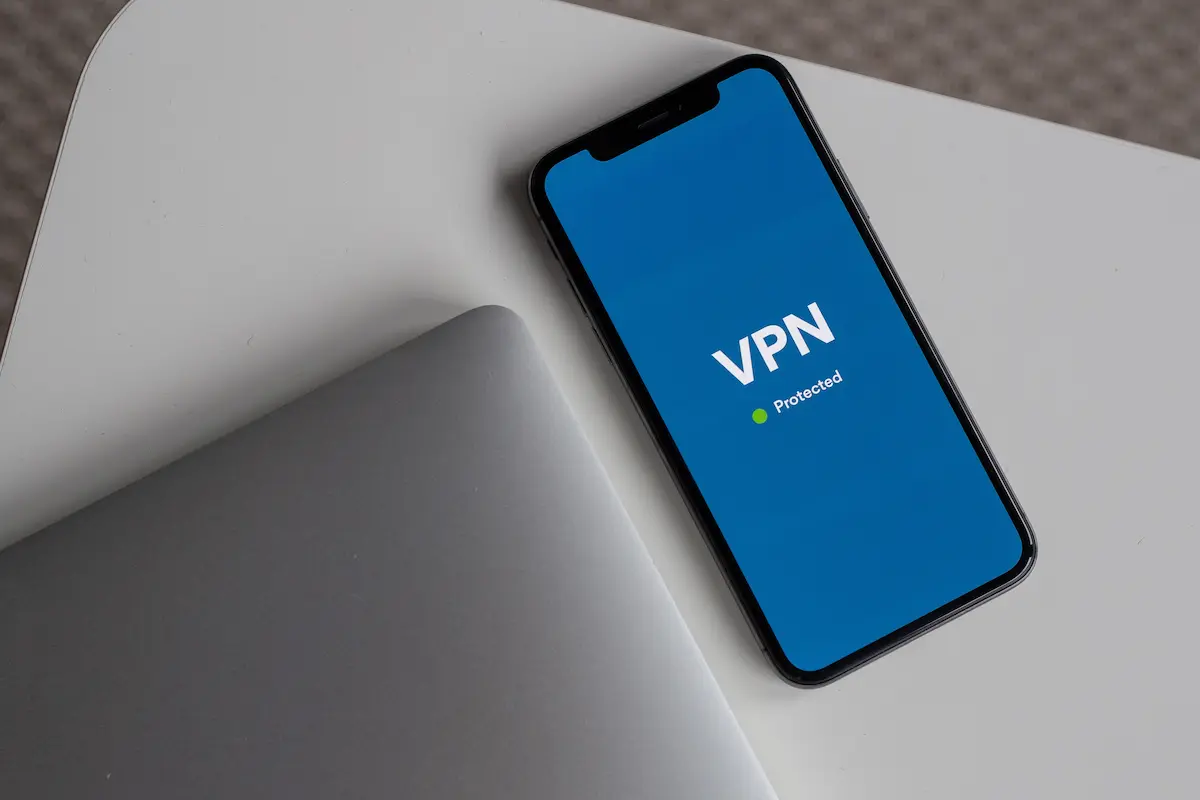
Bahut log sochte hain ki smartphone secure hota hai aur antivirus ki zarurat nahi hoti. Reality ye hai ki malicious apps, phishing links, fake downloads aur spyware aaj bhi phones ko target karte hain. Trusted security tools aapke phone ko real-time threat detection, harmful app alerts aur unsafe link warnings dete hain, jo normal users ke liye kaafi helpful hota hai.
Built-In Security Features You Should Enable First
For Android Users
- Google Play Protect
- Play Store → Profile → Play Protect → Turn ON
- Regular app scanning karta hai
- Safe Browsing (Chrome) → ON
- Find My Device → Enable (theft protection)
For iPhone Users
- iOS already strong sandbox security use karta hai
- Automatic iOS updates ON rakhein
- App Tracking Transparency ko allow na karein unnecessarily
Trusted Security Apps (Optional, Not Mandatory)
Agar aap frequently downloads karte ho ya non-tech ho, to trusted apps help kar sakti hain:
- Avast Mobile Security
- Bitdefender Mobile Security
- Norton Mobile Security
⚠️ Sirf official app stores se hi install karein.
What to Avoid
- “Free phone cleaning” apps
- RAM booster / battery saver apps
- Unknown antivirus from ads
Ye apps aksar data harvesting karte hain.
Practical Tip
Agar phone suddenly:
- Zyada ads dikhaye
- Overheat ho
- Battery fast drain ho
To turant:
- Recent apps uninstall karein
- Play Protect scan run karein
👉 Smart security = protection without overdoing.
9. Enable Phone Tracking, Remote Lock & Data Wipe Features
(Focus: phone lost or stolen protection)
Why This Step Is Non-Negotiable
Phone lost ya chori ho jana sirf device ka loss nahi hota — saath mein personal photos, emails, contacts, banking apps aur saved passwords bhi risk mein aa jaate hain. Agar tracking aur remote control features pehle se enabled hain, to aap phone locate, lock ya pura data wipe kar sakte ho, taaki koi misuse na ho.
Enable “Find My Device” on Android
- Settings → Security & Privacy
- Tap Find My Device
- Toggle ON
- Google account signed-in hona chahiye
- Browser se visit: google.com/find
Features:
- Phone location track
- Remote lock
- Data erase
Enable “Find My iPhone” on iOS
- Settings → Apple ID → Find My
- Turn ON:
- Find My iPhone
- Find My Network
- Send Last Location
iCloud.com se login karke phone control ho jata hai.
What to Do Immediately If Phone Is Lost
- Phone track karein
- Remote lock karein
- Banking apps passwords change karein
- SIM block karwayein (carrier se)
Important Safety Settings
- Location services always ON rakhein
- Google / Apple account ka password strong rakhein
- Recovery email & number updated rakhein
Practical Tip
Phone mil jaane ke baad:
- Passwords reset karein
- App permissions recheck karein
👉 Preparation pehle = panic baad mein nahi
10. Backup Your Data Regularly & Stay Digitally Aware
(Focus: cloud backup, awareness habits)
Chahe phone lost ho, chori ho jaaye, ya software issue se crash ho jaaye — agar backup nahi hai, to aap apni photos, contacts, documents aur important files permanently lose kar sakte ho. Regular backup aapko mental peace deta hai aur data loss ke risk ko almost zero kar deta hai.
How to Enable Automatic Backup (Android)
- Settings → Google → Backup
- Turn ON:
- App data
- Contacts
- SMS
- Device settings
- Google Drive storage check karein
How to Enable Backup on iPhone
- Settings → Apple ID → iCloud
- iCloud Backup → ON
- Wi-Fi connect karke Back Up Now
What You Should Always Backup
- Contacts & call history
- Photos & videos
- Documents (Aadhaar, PAN, PDFs)
- WhatsApp / chat backups
Stay Digitally Aware (Most Important Habit)
- Unknown links par click na karein
- New scams ke baare mein updated rahein
- Family members ko bhi educate karein
- Monthly privacy & security check karein
Practical Tip
Cloud ke saath ek offline backup (USB / hard drive) bhi rakhein for extra safety.
👉 Awareness + backup = long-term digital safety
By following these Digital Protection Tips, you can protect your smartphone, personal data and money from online threats.
Apni smartphone aur personal data ko safe rakhna ab aapke haath mein hai! Ye simple tips follow karein, scams se bachein, aur apni privacy secure karein. Agar aapko ye guide helpful laga, toh comment karein aur apne doston ke saath share karein. Latest digital safety tips ke liye hamare blog ko subscribe karna na bhoolein
Thanks….
If anyone get scammed online contact the following site,Apply these Digital Protection Tips:
https://cybercrime.gov.in/Webform/Accept.aspx
👉 Photos recovery techniques – https://digiprotects.com/photos-recovery-techniques-how-to-recover/
Pingback: 7 Essential Photos Recovery Techniques for Deleted Photos
Pingback: SIM Swap Fraud Explained:How to Stay Safe in India (2026)
Pingback: Fake Jio Hotstar Message Scam: Ek Click Se Bank Account Kaise Khali Hota Hai?
Pingback: SIM Lock Password Forgot? Unlock SIM with PUK Code guide