
Aapko pata hai ?
Kya aapka Google Account truly safe hai? Agar haan,to bahut acchi baat hai. Lekin agar nahi, to samajh lijiye ki aapki digital life ka pura data risk me ho sakta hai. Ye data kabhi bhi galat haatho meja sakta hai.
Sirf strong password hi aaj ke is cyber world me kam nahi ata. Google Account ki real security cchupi hoti hai Manage Google Account ke andar— jaha aap decide karte ho:
- 🔐 Kaun login kar sakta hai
- 📱 Kaunse devices aapka account use kar rahe hain
- 🧾 Kaun aapka data dekh sakta hai
- 💳 Kaun aapki payments use kar sakta hai
- 📩 Account recover kaise hoga agar hack ho jaye
Bahut log password strong rakhte hain, lekin in settings ko kabhi check nahi karte. Isi wajah se unhe baad me search karna padta hai: how to secure google account
🔐 Why Google Account Security Is So Important Today
Aaj ke time me aapka Google account sirf Gmail use karne ke liye nahi hota.
Ye ek master key hota hai jo aapke phone, apps, data aur identity ko control karta hai.
Agar kisi ne Google account access kar liya, to wo indirectly in sab cheezon tak pahunch sakta hai:
📱 Apps Jo Directly Google Account Se Linked Hote Hain
Hain
- 📧 Gmail – personal mails, documents, OTPs
- 📸 Google Photos – personal photos & videos backup
- 📂 Google Drive – documents, certificates, PDFs
- 📍 Google Maps – location history
- ▶️ YouTube – activity, channel, history
- 📒 Contacts – phone numbers of family, friends, clients
- 📅 Calendar – personal schedules
- 🔑 Password Manager – saved passwords of websites
- 📦 Play Store – installed apps, subscriptions
🧾 Sensitive Information Jo Isme Store Hota Hai
- Aadhaar / PAN scans (Drive me)
- Personal photos (Photos me)
- Bank OTP mails (Gmail me)
- Office documents
- Saved passwords of banking, UPI, social media
- Location history of months/years
Isi liye samajhna zaruri hai how to secure Google account properly, sirf password se nahi — settings se.
👉Steps for How to secure Google Account
🧭 Step 1 — Manage Google Account Kahan Milega?
Sabse pehle yahi samajhna zaruri hai, kyunki yahin se how to secure google account ka real control shuru hota hai.
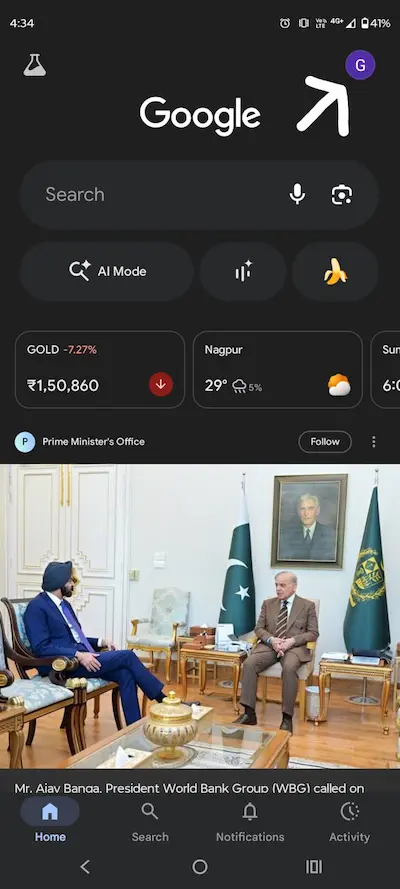
- Phone me Gmail app open karein
- Top right me profile photo par tap karein
- Manage your Google Account par click karein
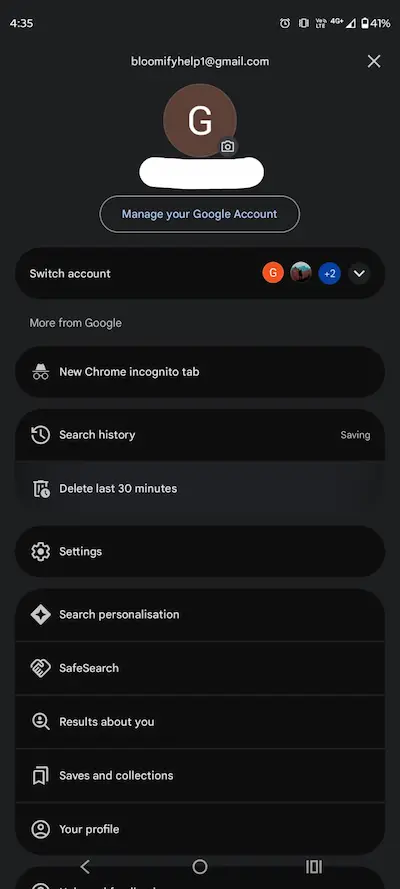
🧩 Yahan pahunchte hi aapko ye main tabs dikhenge
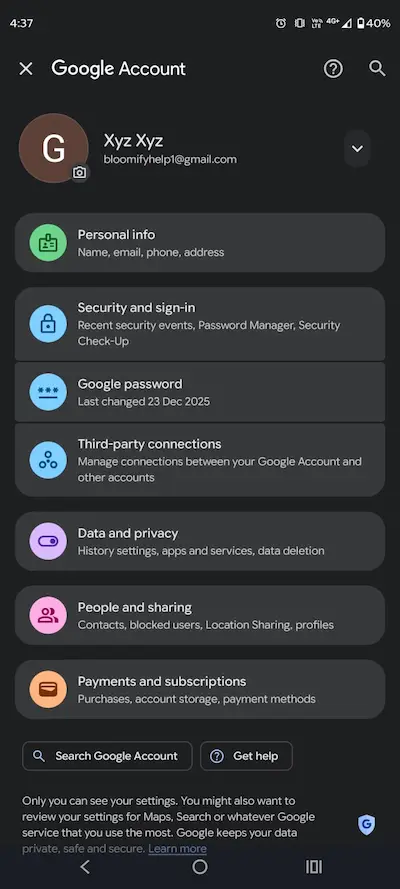
👉 Ab hum ek-ek tab open karke dekhenge: kya check karna hai, kya change karna hai
Start karte hain sabse important tab se — 🔐 Security.
1. Security and Sign-in
🔐 Strong Password Kaise Banaye (Example ke saath)
Weak passwords jo log rakhte hain:
- india@123
- password@1
- mobile number
- pas@123
Ye sab seconds me crack ho jate hain.
✅ Strong password pattern (easy yaad, hard crack)
Formula use karo:
Word + Symbol + Random letters + Number
Examples (samajhne ke liye):
- Mango!R7t@91
- River#K2m$48
- Sky@P9x!73Q
Tips:
- Kam se kam 14–16 characters
- Name, DOB, mobile number use na karein
- Har important account ka alag password
Best: Password manager me save karo (Chrome / Google Password Manager).
🛡️ 2-Step Verification (2FA) Kya Hai
Password = Gate ka tala
2FA = Gate + Security guard
Matlab:
Password pata hone ke baad bhi login nahi ho sakta bina second approval ke.
2FA me Google kya use karta hai?
- Google Prompt (best)
- Authenticator App (most secure)
- SMS OTP (least secure, sirf backup)
📲 Google Prompt
Jab koi login karega:
Aapke phone par popup aayega:
“Are you trying to sign in?”
Aap Yes / No karte ho.
Bina aapke phone ke login possible nahi.
Enable kaise karein:
Security → 2-Step Verification → Google Prompt → Turn ON
🔢 Authenticator App (Sabse Powerful Security)
Ye hackers ka game khatam karta hai.
Authenticator har 30 seconds me 6-digit code generate karta hai jo:
- SMS se nahi aata
- Network par depend nahi
- Hack nahi ho sakta remotely
Kaun sa app use karein?
- Google Authenticator
- Microsoft Authenticator
Setup steps:
- Play Store se Google Authenticator install
- Google Account → Security → 2-Step Verification
- Choose Authenticator app
- QR code scan karo
- App me 6-digit code aayega → enter karo
Done
Ab login ke time:
Password + Authenticator code lagega.
Agar SIM swap ho jaye tab bhi hacker login nahi kar sakta.
📩 SMS OTP ko sirf Backup kyu rakhein?
SIM swap scam me:
Hacker aapka SIM le leta hai → OTP uske paas.
Isliye SMS secure nahi hai as primary method.
Use only as backup.
🧯 Recovery Options (bahut important)
Agar account hack ho jaye, yahi aapko wapas dilayega.
- Recovery phone = aapka hi number
- Recovery email = aapka hi second email
Unknown ho to remove.
✅ Final Secure Combo (ideal setup)
- Strong password
- Google Prompt ON
- Authenticator ON
- SMS as backup
- Recovery phone/email correct
2. Third Party connections
Ye option milta hai:
Manage Google Account → Security → Third-party apps with account access
Yahin se bahut baar account misuse hota hai — bina password hack hue.
🤔 Ye Third-Party Access Kya Hota Hai?
Jab aap kahin bhi “Continue with Google” use karte ho:
- Shopping apps
- Games
- Quiz sites
- Random tools
- Old websites
To aap Google ko bolte ho:
“Is app ko mera Google data access karne do”
Aur log ye kabhi check hi nahi karte.
✅ Kaise Check Karein & Remove Karein (Step by Step)
- Google Account → Security
- Scroll → Third-party apps with account access
- “Manage third-party access” par click
Aapko list dikhegi:
- Kaun-kaun si apps connected hain
- Kya access diya hua hai
Ab kya karein?
Har app ko dekho aur pucho:
“Kya mai ye app abhi bhi use karta hoon?”
Agar nahi:
:
👉 Remove Access
3. People & Sharing — Kaun Aapka Data Dekh Sakta Hai
Yahan decide hota hai:
Aapki kitni personal information dusro ko visible hai.
Agar yeh sahi set nahi hai, to bina hack hue bhi:
- Aapka name
- Photo
- Birthday
- Location hints
Public ho sakte hain.
Aur phir log search karte hain: how to secure google account.
4. Personal info
Yahan har field par click karke visibility set karni hai.
| Field | Kya Set Karein | Kyun |
|---|---|---|
| Profile Photo | Only you | Face misuse avoid |
| Birthday | Only you | Identity misuse rokta |
| Gender | Only you | Unnecessary exposure |
| Only you | Spam / phishing kam | |
| Phone | Only you | SIM swap risk kam |
🧠 Ye Important Kyun Hai?
Scammers pehle aapki public info nikalte hain:
- DOB
- Photo
Fir usse social engineering karte hain.
Aapko lagta hai hack hua.
Actually info aapne hi public chhoda hota hai.
Yahi practical part hai how to secure google account ka.
✅ Final Check
People & Sharing me jaakar ensure karein:
- Koi info “Anyone” ya “Public” par na ho
- Sab “Only You” par ho
Ye set karte hi aapne apne Google account ka data exposure band kar dete hai.
5. Data and Privacy
Yahin par Google aapki activity history, location history, YouTube history, ads profile sab store karta hai.
Agar ye control me nahi hai, to account secure hone ke baad bhi privacy secure nahi hoti.
Ye section core part hai: how to secure google account beyond password.
🕵️ Step 1: Activity Controls Open Karein
Open Activity Controls
Yahan 3 main cheezein milengi:
| Setting | Kya Karein | Kyun Important |
|---|---|---|
| Web & App Activity | Turn OFF | Aap kya search/use karte ho, track hota hai |
| Location History | Turn OFF | Har jagah ki movement save hoti hai |
| YouTube History | Pause / OFF | Viewing pattern store hota hai |
Agar privacy chahte ho, ye teen OFF hone chahiye.
🗂️ Step 2: Auto Delete Set Karein
Same page par Auto-delete option milega.
Set karein: 3 months
Isse purana data automatically delete hota rahega.
📍 Step 3: Timeline (Location Tracking) Check
Open Google Maps Timeline
Agar aapko purani locations dikh rahi hain, to:
- Timeline OFF karein
- Previous history delete karein
🎯 Step 4: Ad Personalization Control
Open Ad Settings
Turn Ad Personalization OFF
Warna Google aapki searches ke basis par ad profile banata hai.
🧹 Step 5: “My Activity” Clean Karein
Open: myactivity.google.com
Yahan:
- Delete by date
- Delete all time
Ye pura usage history clear karta hai.
✅ Final Privacy Checklist
- Web & App Activity OFF
- Location History OFF
- YouTube History Paused
- Auto-delete = 3 months
- Ad personalization OFF
- My Activity cleaned
Ab aapne sirf login hi nahi, data level par bhi implement kiya — how to secure google account.
✅ How to secure Google Account – Overall Checklist
| 🧩 Google Account Option | ✅ Is Option Me Ye Settings Zarur Check Karein |
|---|---|
| 🔐 Security & Sign-in | • Strong password set karein (12–16 chars, mix symbols) • 2-Step Verification (Authenticator app) ON karein • Recovery email & phone number update karein • “Your devices” me unknown device sign-out karein |
| 🔗 Third-Party Connections | • Unused apps remove karein • Sirf trusted apps connected rakhein • Apps ko unnecessary permissions na dein |
| 👥 People & Sharing | • Drive/Photos sharing “Restricted / Only me” rakhein • Unknown shared access remove karein |
| 🔑 Password Manager | • Password Checkup run karein • Weak / reused passwords change karein |
| 📦 Data & Privacy | • Web & App Activity OFF ya Auto-delete 3 months • Location History OFF karein • YouTube History pause ya auto-delete • Ad personalization OFF karein |
| 🧹 My Activity | • Purani activity delete karein (search, maps, youtube) |
| 🛡️ Safety Habit | • Monthly Google Security Checkup karein • Unknown links par Google login kabhi na karein |
✅ Conclusion — How to Secure Google Account Properly
Aaj ke time me Google Account sirf email nahi hai. Ye aapka photos, contacts, passwords, payments, location history, documents, aur personal identity ka center hai.
Sirf strong password rakhna enough nahi hota. Real security tab aati hai jab aap Manage Google Account ke andar jaakar sahi settings configure karte ho.
Agar aapne is guide me bataye gaye steps follow kiye hain, to:
- Unauthorized login ka risk kaafi kam ho jata hai
- Third-party apps ka misuse ruk jata hai
- Data tracking aur privacy exposure control me aa jata hai
- Account recovery strong ho jati hai
- Aur aap practically samajh jate ho how to secure Google account the right way
Ye ek baar ka kaam nahi hai. Har 1–2 mahine me 2 minute ka security check aapko future problems se bacha sakta hai.
.
🔗 Related Safety Guides (Internal Links)
SIM Swap Fraud Kaise Hota Hai Aur Kaise Bachein
SIM Lock Password Forgot? PUK Code Se Unlock Guide
How to Check If Phone Is Hacked — Warning Signs
Truecaller Privacy Review – Kya Safe Hai?
Best Truecaller Alternatives (Privacy Friendly Apps)
Best UPI App in India – Safety Comparison
🌐 External Security Resources
CERT-In Cyber Security Alerts (India)
❓ FAQs — How to Secure Google Account
Q1. Kya sirf strong password rakhna kaafi hai?
Nahi. 2-Step Verification, recovery info, aur privacy settings equally important hain.
Q2. Authenticator app SMS se better kyu hai?
SMS SIM swap se bypass ho sakta hai. Authenticator app device-based hota hai, zyada secure.
Q3. Third-party apps remove karna kyu zaruri hai?
Ye apps aapke Google data tak access rakhte hain. Unused apps risk create karte hain.
Q4. Kitne time me ek baar security check karna chahiye?
Har 1–2 mahine me ek baar Google Security Checkup karna best practice hai.
Q4. Kitne time me ek baar security check karna chahiye?
Har 1–2 mahine me ek baar Google Security Checkup karna best practice hai.
Q5. Agar Google account hack ho jaye to pehla step kya?
Immediately password change karein, devices sign-out karein, aur recovery info verify karein.